How Shopify Virtual Try-On Works
Start from the Shopify listing when you are ready to connect, or begin with a demo when your team wants a guided rollout review.
Configure in Shopify Admin
Start from the Shopify listing to connect your store with OAuth authentication and sync your catalog. If you want a rollout review first, schedule a demo.
- Shopify OAuth connection
- Automatic catalog sync
- Real-time inventory updates
- Theme integration preview
Store setup
Launch checklist for Nami Studio
Products synced
423
Last sync
2 min
Spend cap
$180
Customize Appearance
Match the try-on widget to your brand. Choose button styles, colors, and placement. Preview changes in real-time before going live.
- Brand color matching
- Button style presets
- Mobile-responsive design
- Usage control review
Appearance
Preview before publishing
Button text
Brand color
Placement
Live preview
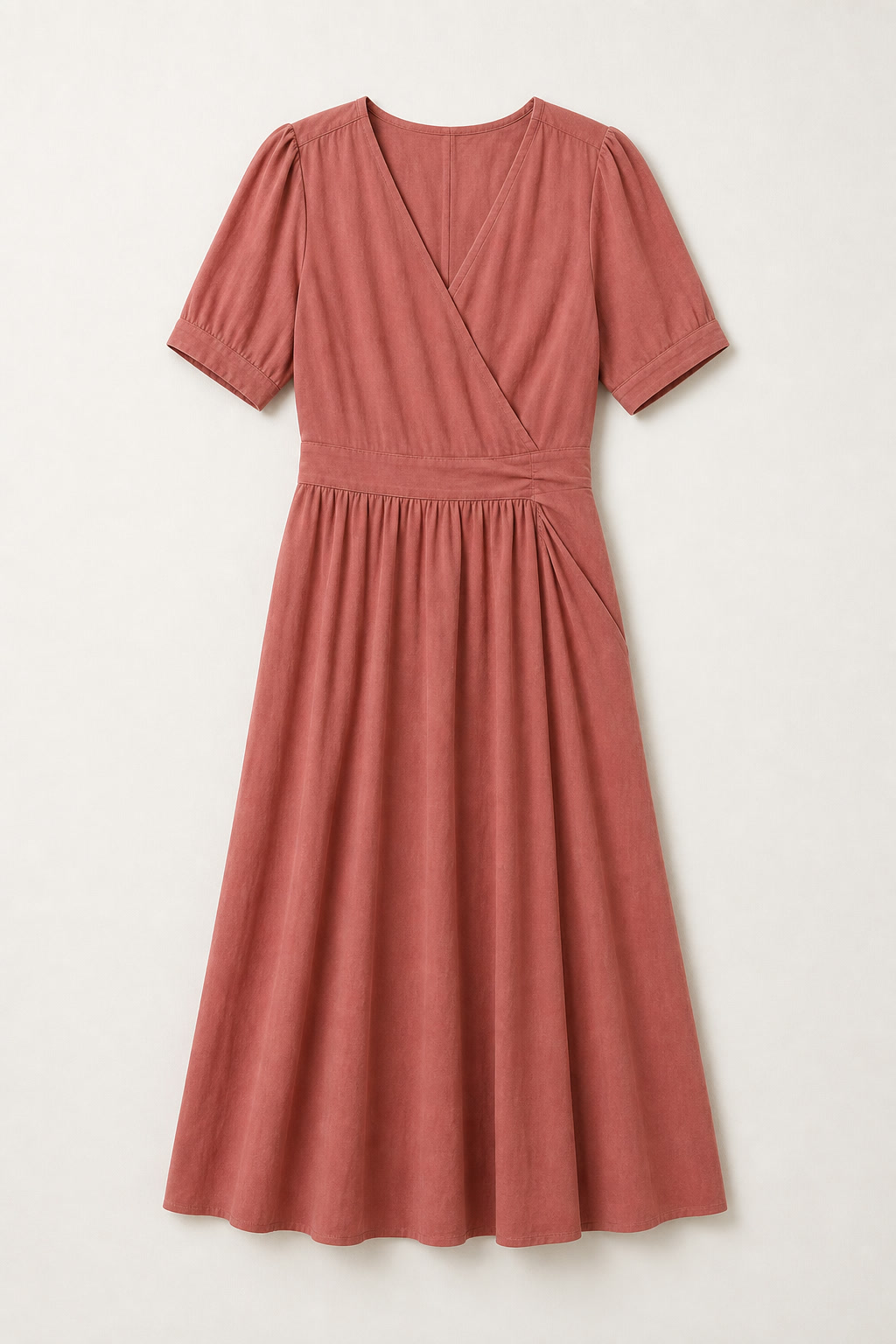
Linen Summer Dress
$148.00
Shoppers Experience Try-On
Your customers see a Try-On button on product pages. They upload a photo, watch clear progress, and get a realistic video.
- Video generation progress
- Mobile-first experience
- Privacy-first approach
- Ready video playback
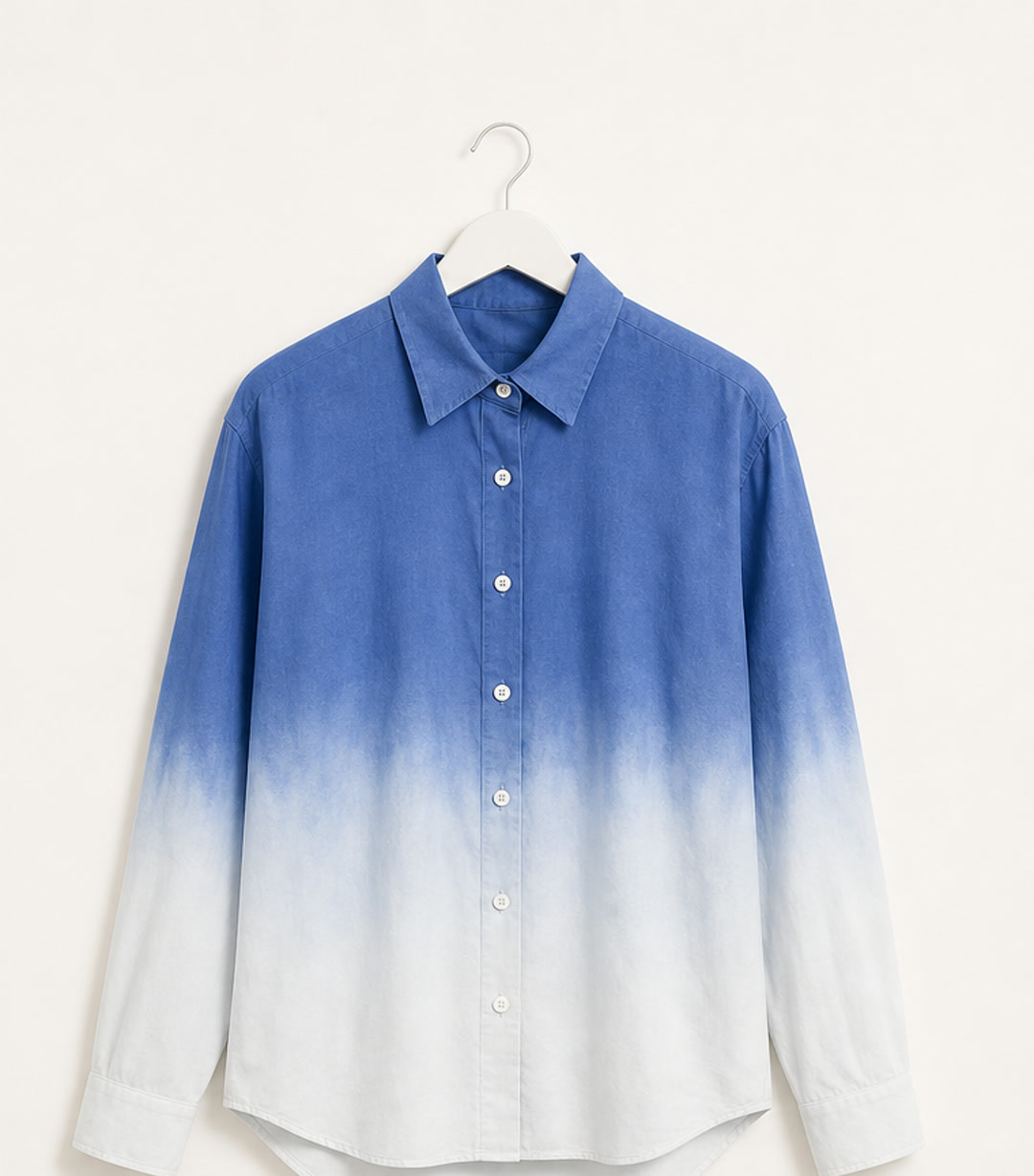
Button-Down Shirt
$92.00 | Color: Blue
Your try-on
Video ready in about a minute

Ready to get started?
Start from the Shopify listing to begin setup, or schedule a demo to review category fit, launch timing, and the operating model for your store.